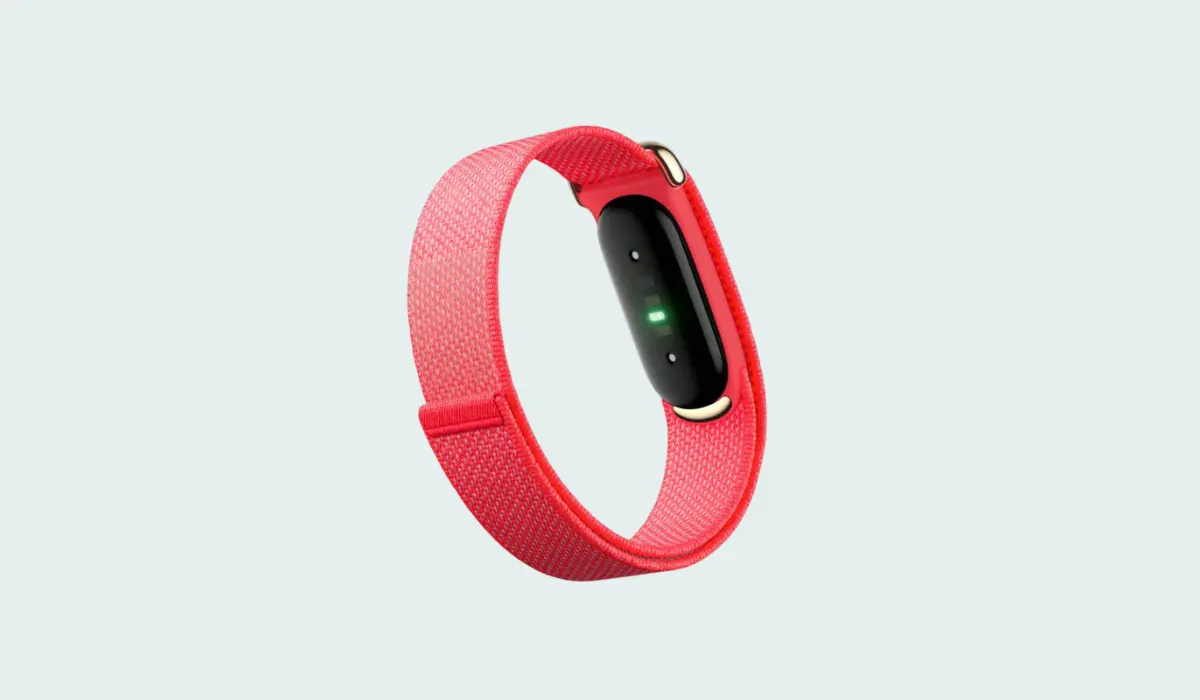

In this blog post will show you how to set up and pair newsly launched Google Fitbit Air with your smartphone, either iPhone or Android.
Not just pairing it with smartphone but Also, how to use Fitbit Air’s all the functions, how to operate it, how to wear it, everything that you need to know about it, also a bunch of cool tips and tricks as well about this tracker.
And first, let’s check out the tracker itself and everything that we get on it.
Contents
Google Fitbit Air Box First Look
In the Fitbit air we get tracker integrated inside the strap. We are getting very nice Velcro here on it, very nice metal buckle. And we can also take out the tracker as well.
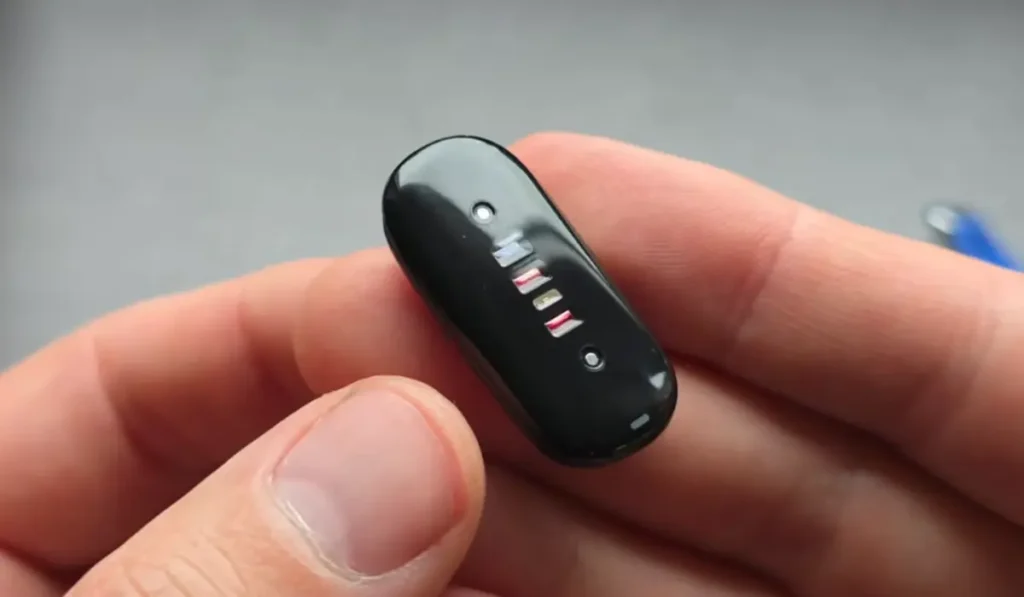
If you basically push this metal part, I see it kind of pops out easily here, and you can take it out.
1. Size
When it comes to size, just how insanely tiny it is, literally smaller than my finger. The size is absolutely ridiculous, right?
2. Charging Pin
On the top and also bottom, we are getting our charger pins, and then all the sensors in the middle. To insert it back in, simply pop in here, push in the first edge, and also with other finger, the other one.
Simply pop it on your hand, make sure the tracker is underneath, and then simply cover with a Velcro strap.
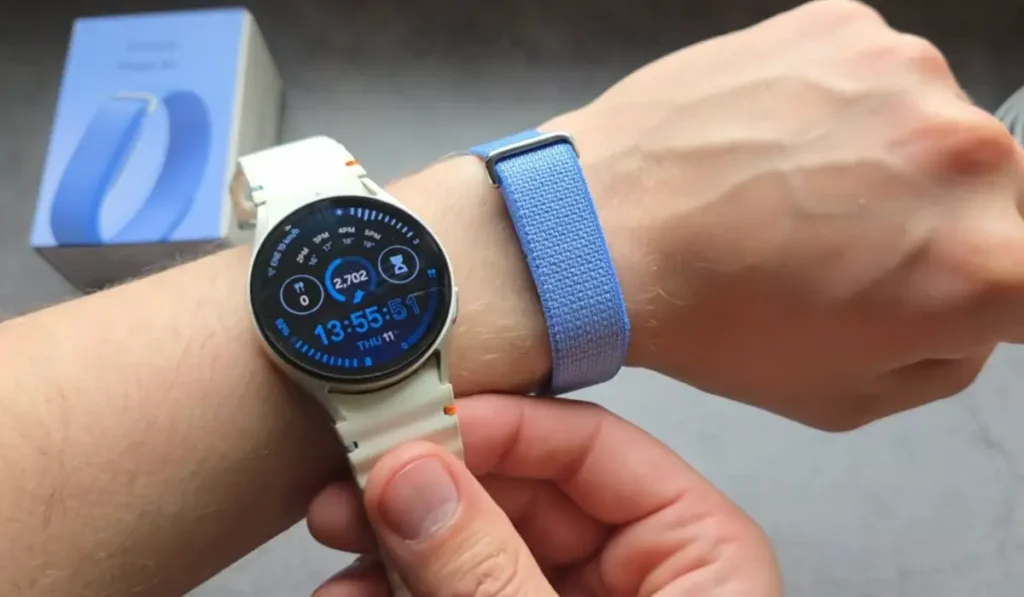
If I compare it to my smart watch, so like Samsung Galaxy Watch, You really can’t even feel that you have something on when you actually wear this thing.
How to Power On Fitbit Air & Pair with Your Phone
To be able to connect to your phone, first we have to actually power on our tracker. So, simply grab your charger.
The way we turn it on is by simply plugging in a charger. It doesn’t have any buttons.
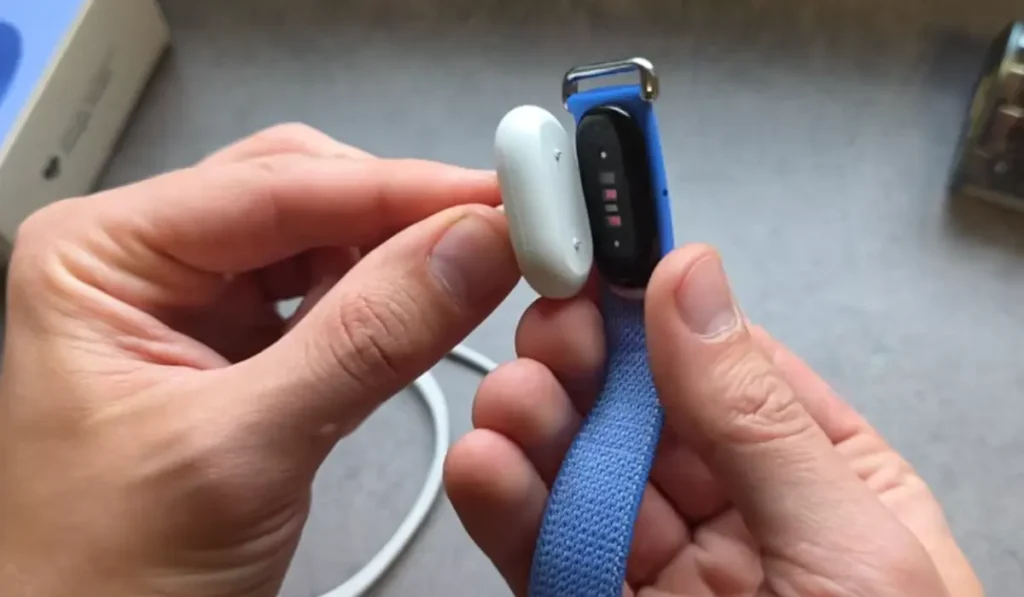
You can attach your charger as it is a magnetic charger. So we can simply insert in any like type-C port or maybe like a charger.
Once it turns on, you’ll see this tiny light here. And for setup process, you need to actually leave it on a charger. So, simply leave it aside.
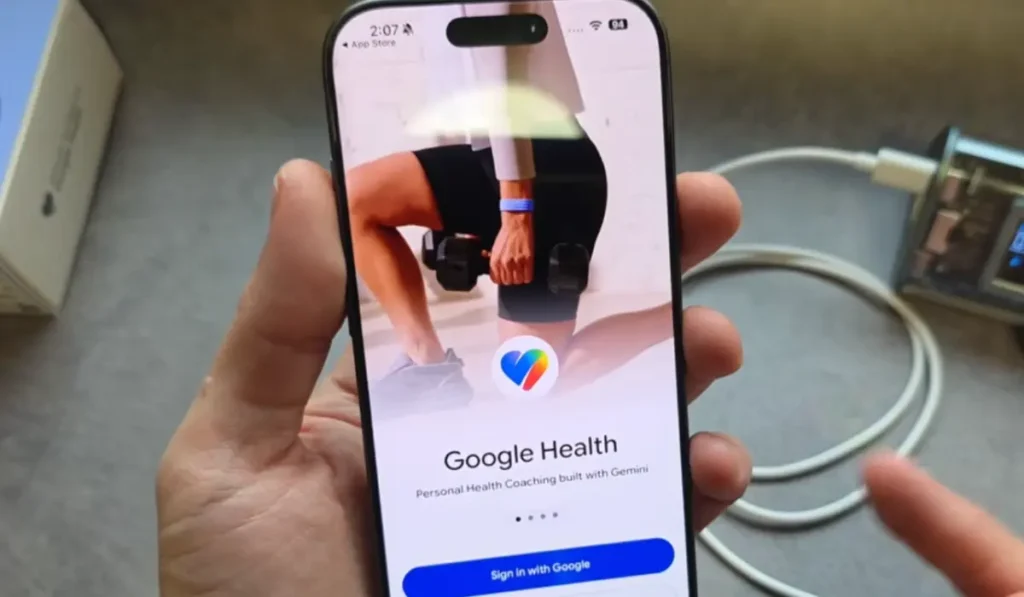
Then simply go either in your Apple App Store or Play Store and download the Google Health app. Then let’s open it up. You want to allow all these permissions here. And next, we either need to sign in with Google or Fitbit.
Yep. Allow all the notifications. And in this app, simply click there And click add more devices. Then select your Fitbit Air. Start setup.
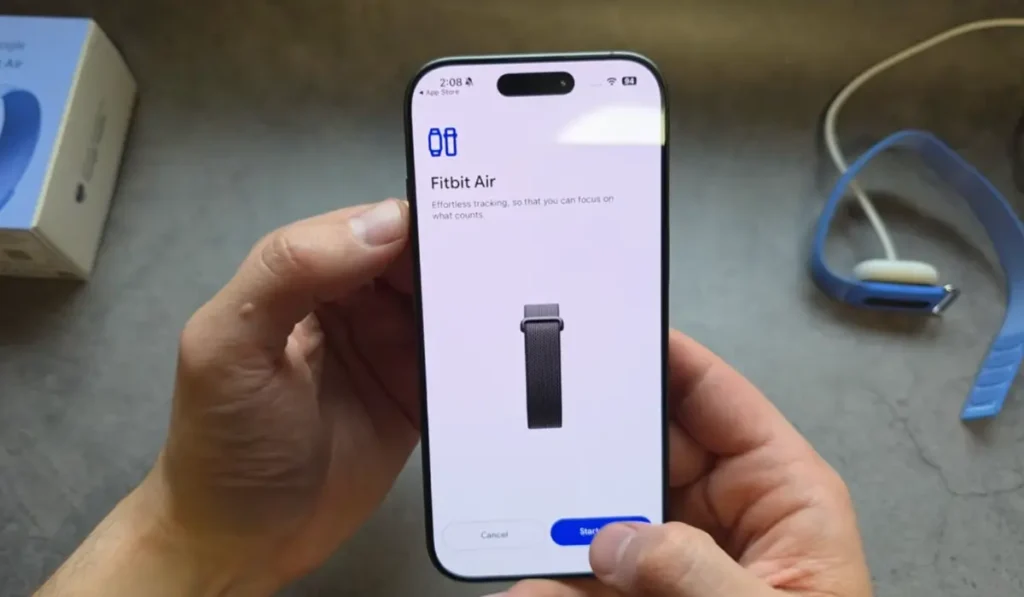
It appears you can only use one tracker on the same account. Agree to the terms and then Continue. Then you will see it’s now searching for it and then Allow pairing request.
How to Track a Workout on Google Fitbit Air
There are two main ways how you can track a workout, either using the automatic tracking or the manual.
1. Automatic Tracking
If you simply wear your band, it should ultimately track your workout if it’s at least 15 minutes in length.
Also, if you click on your profile icon here and go health settings, activity, activity detection, I see you can go here and actually customize the minimum time for the exercise.
By Default for literally all of these, you are getting 15-minute minimum like time.
So, if you run for 10 minutes, it actually won’t record the exercise, which is absolutely stupid in my opinion.
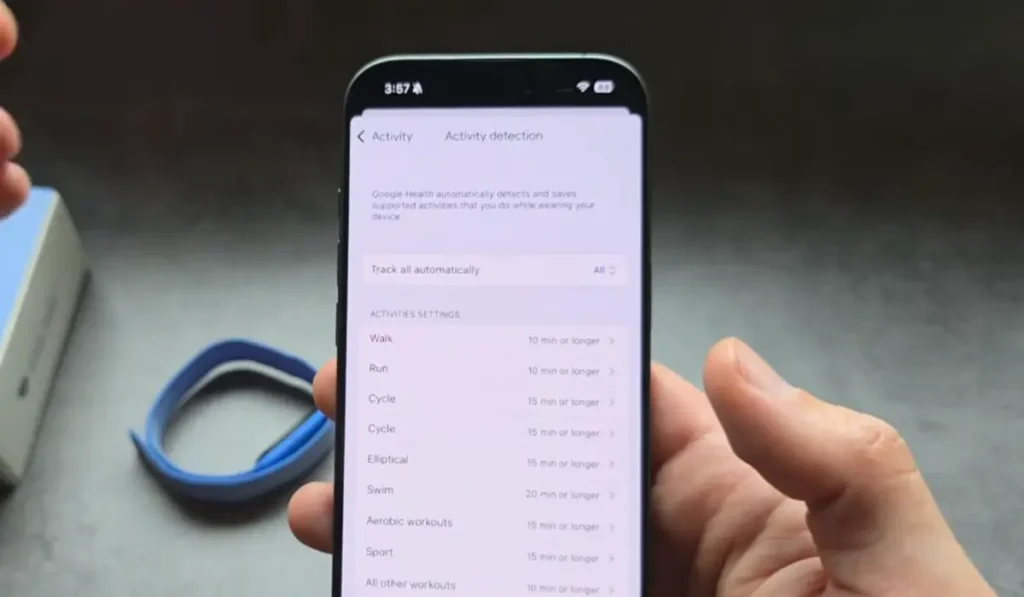
But we can actually change it to 10 minutes. So, that’s the minimum you can actually choose for any exercise. So, you want to go here and set it for 10 minutes.
In my opinion, 10 minutes still is way, way too long. There shouldn’t really be any limit whatsoever. So, again, this is very stupid in my opinion.
Note: Also, another negative for the automatic tracking is if you actually rely on the automatic tracking, it won’t record the GPS data and your distance and more advanced settings.
This tracker is it actually does not have internal GPS. So, it simply relies on your phone’s GPS.
2. Manual Tracking
If you want to track a workout, again, you simply have to have your phone basically in your pocket essentially if you want to actually track the distance and then, how to manually start the workout.
Definitely when it comes to amount, it’s definitely nowhere as much as on other like smartwatch. So, maybe like five times less usually than you get on other smartwatch.
If you actually start this workout tracking in the manual mode as I’m showing, it also will record the GPS. So, your phone will simply pass the GPS signal to your watch and will record. And once you end the workout, it should save.
Can You Interact With the Band?
You might wondering if you can perhaps interact with a band, so maybe click something on it to do something as in unfortunately, nope you cannot interact.
You will receive a notification on your phone, you won’t know it. So, it won’t actually vibrate for any notifications, which is quite limiting in my opinion.
Btw There’s no way how to start exercise manually from the band, you have to actually use your phone app to start exercise. Obviously, we can’t know our time, basically how many steps we have done.
It’s simply like yeah, simply accessories that you wear on your wrist and again, you can’t really do anything with it. It simply gathers the data and sends everything to your phone.
Features of Google Fitbit Air
Well this Fitbit Air has so many features such as Alarms, Step Counter and many more, so lets talk about most important one:
1. Alarms & Vibration Settings
You can set alarms on it and it will even vibrate. You have go in the Fitbit app, and you can set alarm.
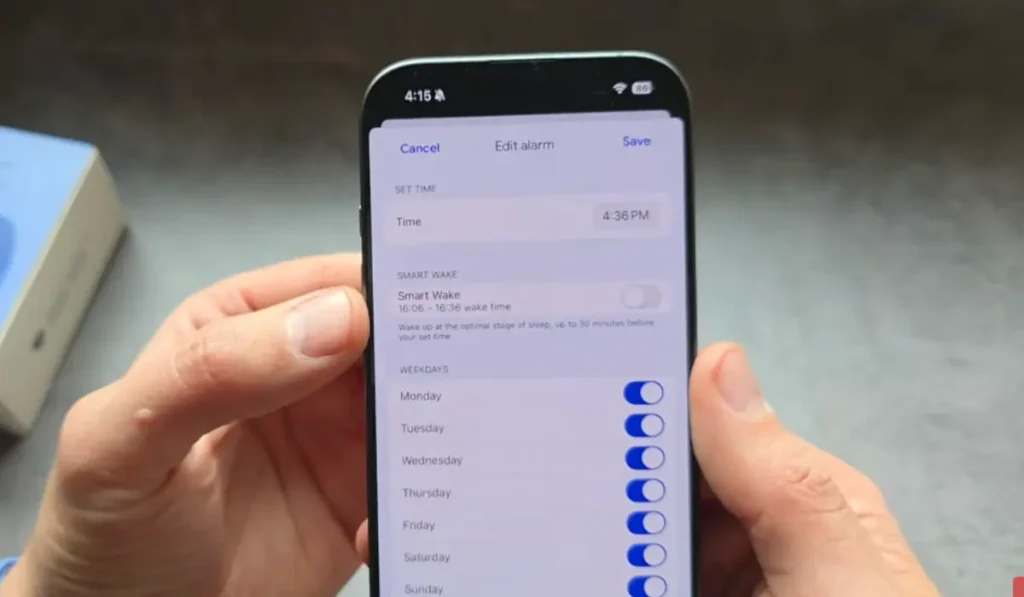
You can change your time to whatever you need. Also, it has got this smart awake alarm as well. So, if you enable this smart awake feature, it essentially will check your sleep stage in which you are.
Once you save alarm, basically once the alarm rings, you will feel vibration on your arm. So, it’s actually quite strong. If you want to dismiss the alarm, you simply double tap.
In the Fitbit app go into device preference and you can adjust the vibration intensity. You can even set it as high to obviously be able to wake us up. So, on the low that leads to weak.
Also make sure to set your wrist preference if you actually want to wear it on the other hand.
2. Step Counter
The Fitbit Air can track your steps as well. So, again, it tracks automatically and uploads all the data to your phone, so you can see the history also for the week, months, and also year.
However, When it comes to step counter accuracy, I’m unfortunately not that impressed compared to other watches.
If you are simply taking a fairly long walk, then it tracks all the steps perfectly fine, so can’t complain much.
But when it comes to mixed walking, essentially when you are simply walking in short bursts, simply around your house, doing some kind of household chores, this is where it actually undercounts heavily compared to like actually decent smartwatch when it comes to step counter.
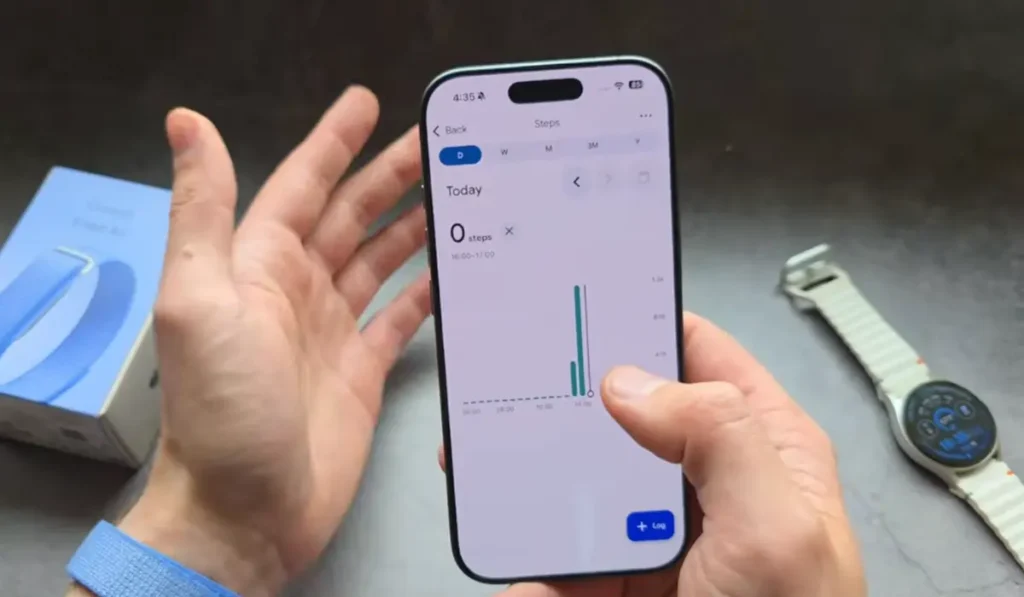
So, I would say Samsung Galaxy Watch and Huawei Watch are really the best when it comes to step counting. Also, Apple Watch also is decent, but not as good as Samsung, in my opinion. This one, unfortunately, doesn’t come close to these.
When it comes to step counting, I find it’s actually very similar to the Pixel Watch, which I also do not like when it comes to step counter, because again, it undercounts like absolutely crazy compared to actually good watches.
3. Sleep Tracking
One of the best usage case for this tracker, I would say that would be the sleep tracking.
Due to the excellent shape and comfort of it whenever you ear it you really can’t even feel it, and its weight is 12 g.
So, if you compare to the Whoop or any smartwatch, again, it’s simply totally in next level.
The sleep data looks like:
- You can see your Sleep score.
- Duration, the sleep stages, sleep quality.
- You can also see the sleeping heart rate here.
- Also, on the band, we can get the redness score as well, but to get that, you have to actually wear your device for almost a week, and only then it will appear.
If you swipe it and can see basically more like quick things that you can tap and inspect closely. You can even get data of How many floors we have climbed today.
Final Verdict: Is Fitbit Air Worth It?
Is the new Fitbit Air actually worth it and should you maybe get one? So, I guess it kind depends on what you are exactly going to use it for.
If you solely need it for sleep tracking and maybe during daytime you are actually going to wear like a decent smart watch, so you’ll only wear this at night to track your sleep, its shape, form, comfort again really is the best out of anything you can get on the market currently.
However, if you plan to replace your smart watch with band, I would kind of think again because obviously on this device we can’t check our step count quickly like time, date, any basic stuff like that. So, you have to pull out your phone essentially like 50 times per day instead of just looking in your smart watch.
If you are looking for extremely nice and incredibly slim device to primarily track your sleep with, then this is really pretty much unbeatable. And the best part is we do not have any stupid subscriptions, so no monthly fees unlike with other bands.