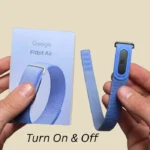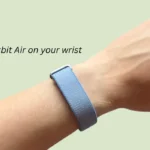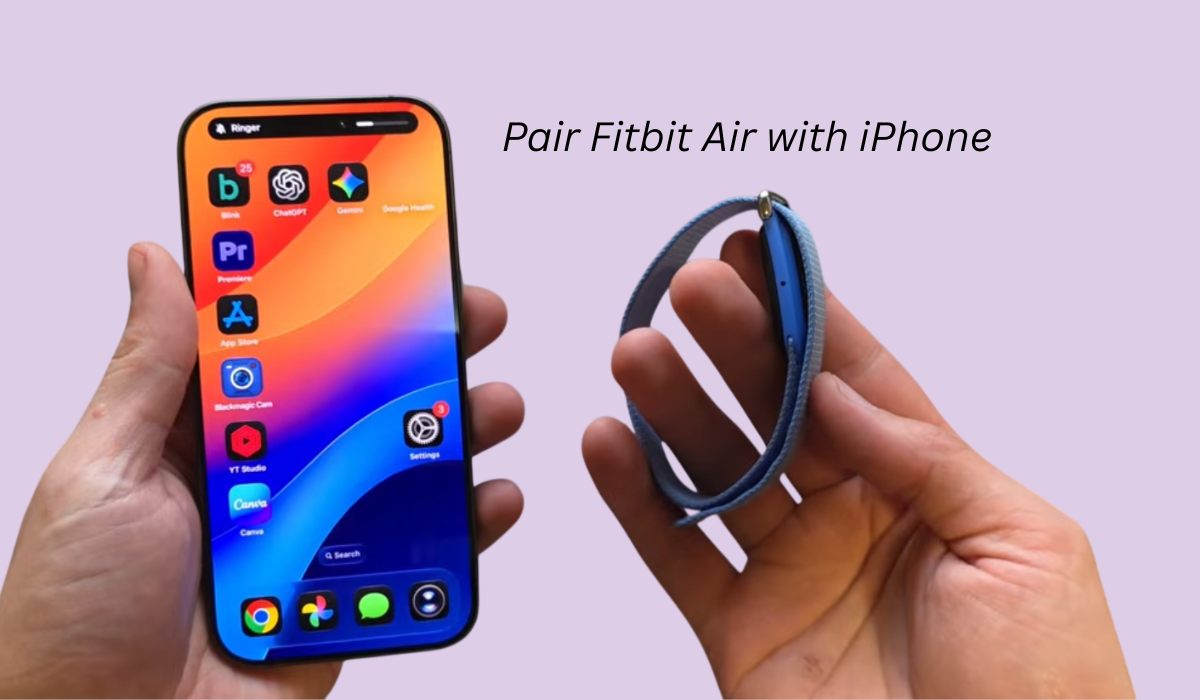

So friends, if you own an iPhone and want to pair your Fitbit with it, then this article is for you because here I am going to share the easiest way how you can connect Fitbit Air on an iOS device.
Contents
How to Connect Fitbit to iPhone
So for this, we are going to use Google’s Health app and also require a Fitbit Air with full charge, so let’s begin with the steps below.
Step 1: Turn on Fitbit Air
Inside the box, you will get a charger and this is actually what we need to turn on a Fitbit Air.
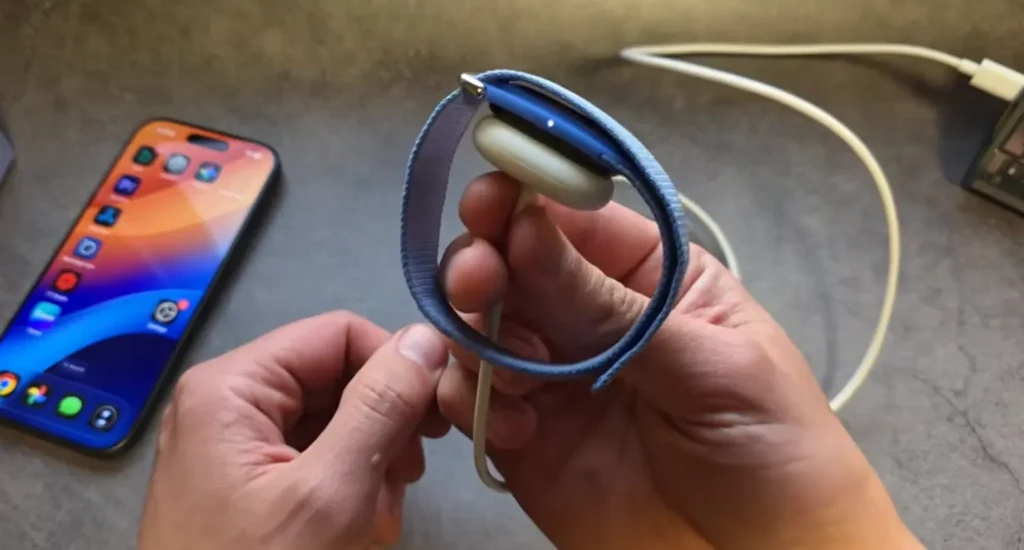
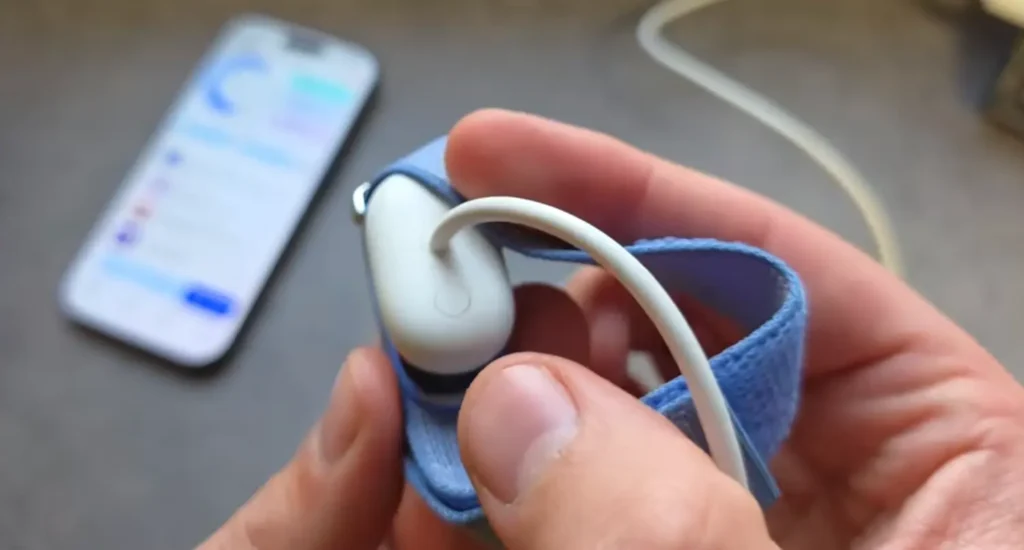
The simplest way to turn on Fitbit Air is to plug in the charger and give it power, and once the light appears, that means the Fitbit Air is turned on and it is in pairing mode.
Step 2: Install Google’s Health app
Now, as our Fitbit Air is turned on and it is ready for pairing, we need to download the Google Health app through the App Store.
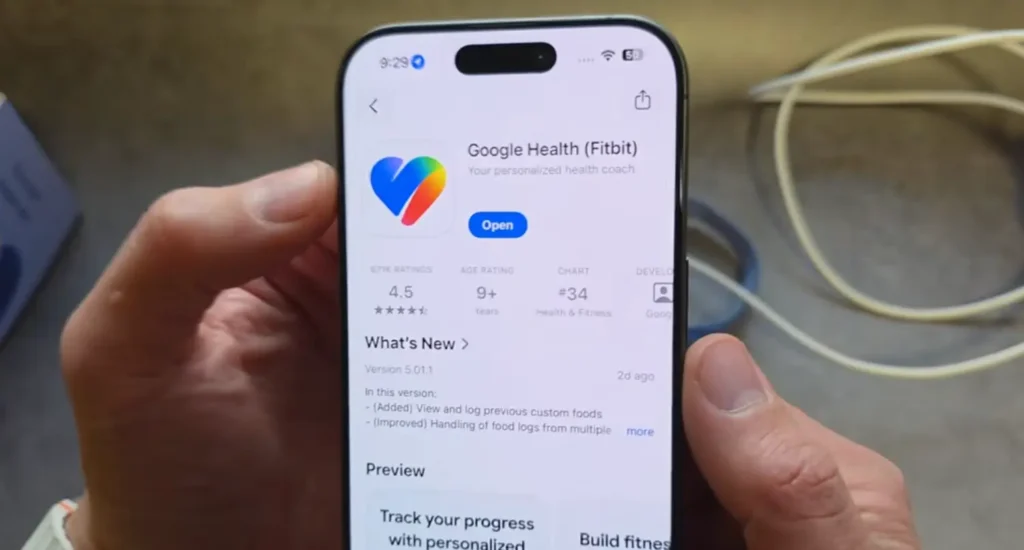
Once the app is downloaded, just open it and allow the permissions, which will help to find your device. After that, you can either sign in with a Google or Fitbit account, so do that and please allow the location.
Step 3: Pair Fitbit Air with the app
Now, as we have installed the app and given the necessary permissions, on the home screen of the app we have to click on the connect option and then find Fitbit smartwatch or tracker, and then select Fitbit Air and click on start setup, and then click on the agree button.
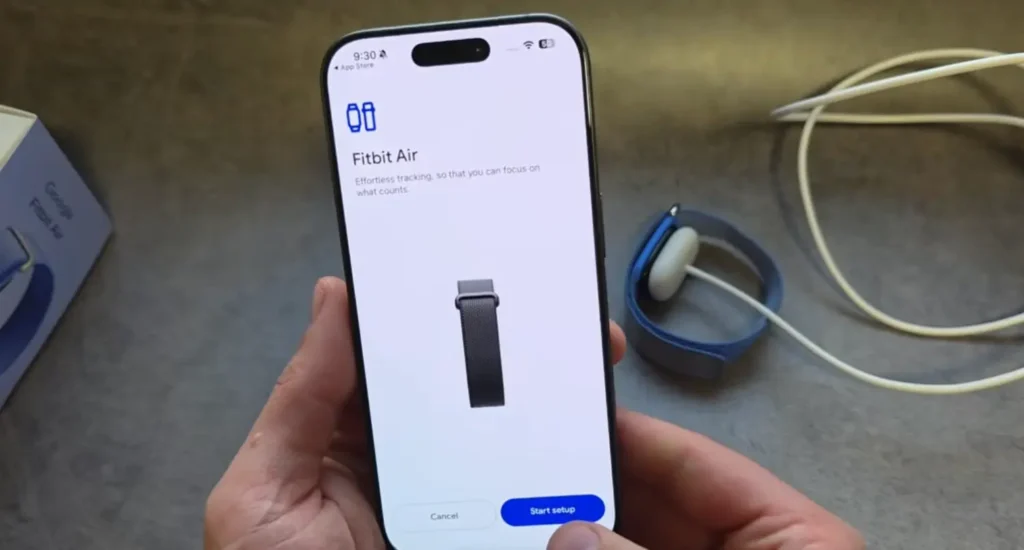
The app will automatically find the device and then you have to connect it. Sometimes it may take a little longer. When the pairing request is sent, then you have to allow it.
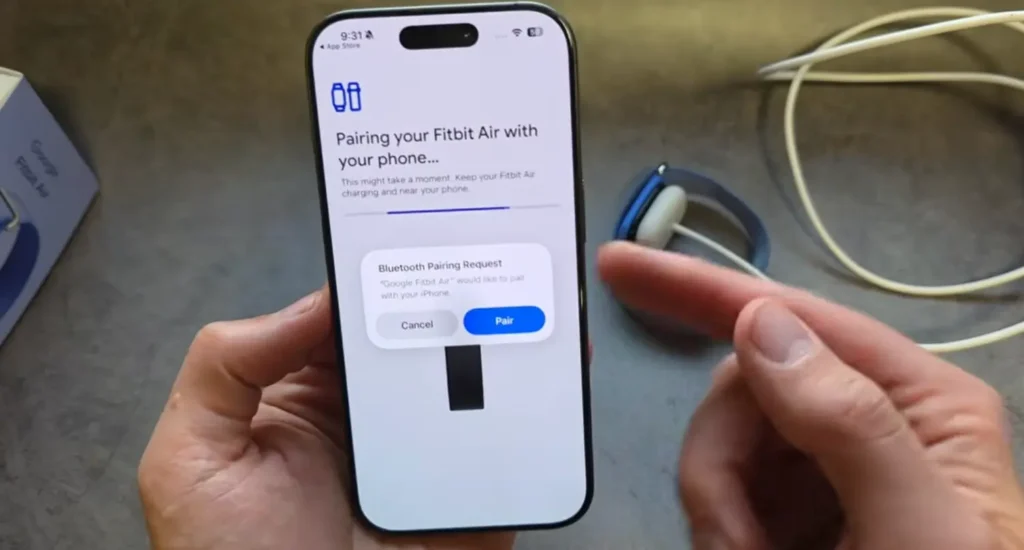
Once the request is accepted, then your Fitbit Air is successfully connected with your iOS device. Now you can use it and control it through the Google Health app.
Read this Also: How to Setup Google Fitbit Air
Can’t find it in the app? Try this
So if you are trying to pair it and it’s not showing or being found in the app, then you have to look at the tiny button given on the charger, then make sure that it is given sufficient power, or you may simply hold the button for like 10 seconds and it will automatically get reset or restart itself, then it will be able to be found.
Also, if you have paired this Fitbit Air with another phone in the past, or you want to pair it with another phone, then make sure to go into the Bluetooth settings and click on Google Fitbit Air and then click on forget, and now you can pair it with a new device.
What will you see once it’s connected?
So if your Fitbit Air is connected, then you will see your data like cardio load, or it can sync the data from the Fitbit to your Apple Health as well, so you need to allow it, and it will offer a pop-up where you can pair that as well.
For example, after connecting with your Apple Health, you can even see the step count of the previous day as well as your sleep score.
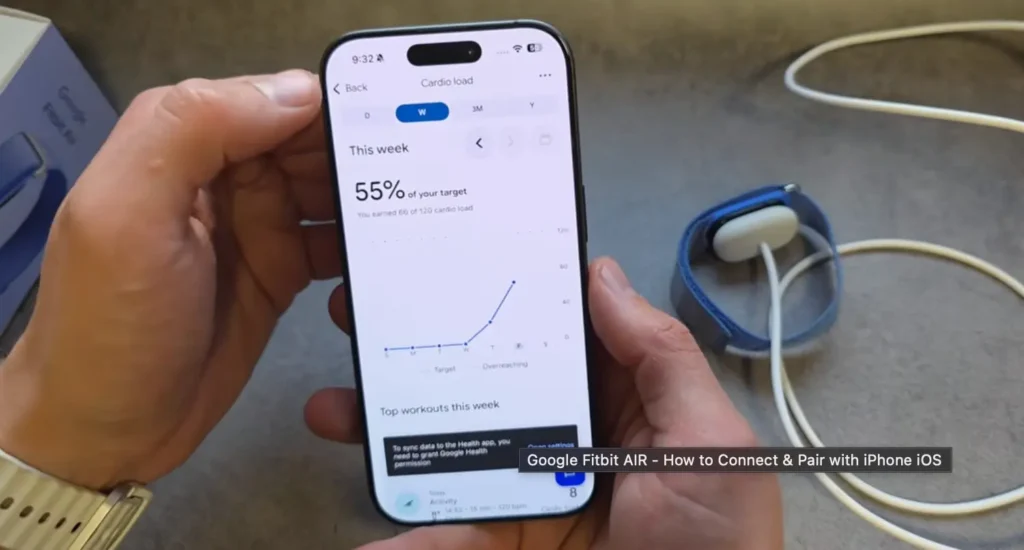
Now, if you want to start the exercise, you can simply do it from here and it has got automatic workout detection sensors.
Then, if you click on the Health app, there will be more health stats shown like cardio, HRV, oxygen for sleeping, active zone minutes, and so on.
Where to find settings for Fitbit Air
So many people after getting Fitbit Air get confused about where they will find the settings. For settings, you have to open the Google Health app and in the device preferences, you can change some settings over there.
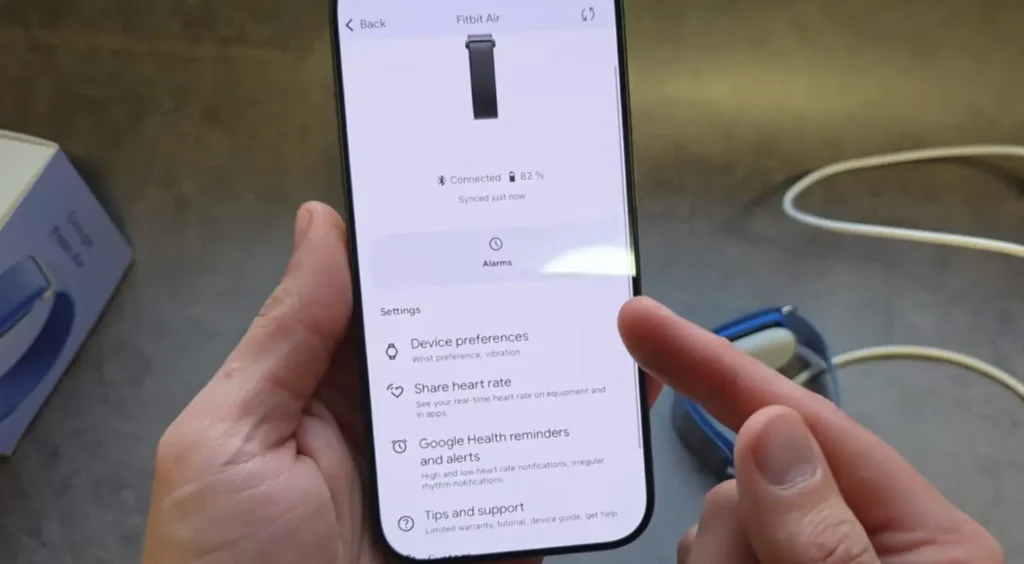
You can set your alarms, can change your profile icon, and a bunch more settings.
Conclusion
So in this post, I have shared the easiest way to pair your Fitbit Air with any iPhone or iOS device. Now you can track your workout through Fitbit Air.