
I have received so many replies from you guys who actually read my blogs and found that the most common issue people are facing is that they are not able to connect Fitbit air.
Now, Fitbit air does have some connection troubleshooting issues, but you can resolve them within two minutes, so just read this article and follow the given steps.
Contents
How the normal connection works
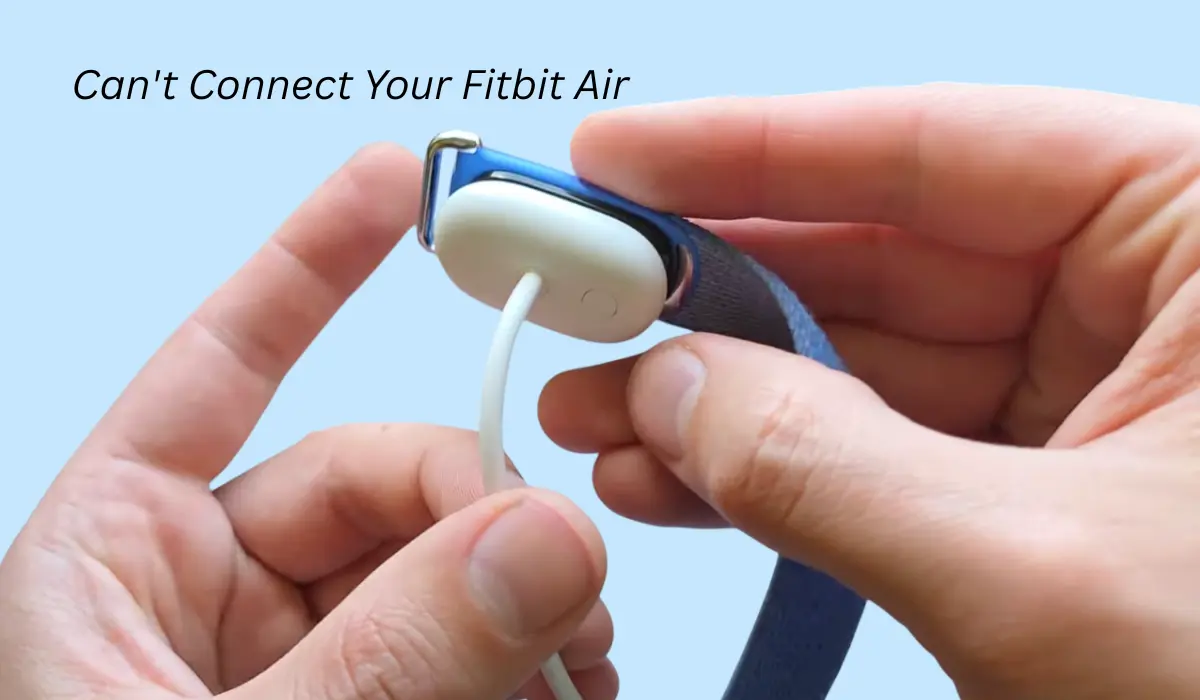
Fitbit air doesn’t have any button on it, so you have to grab your charger and plug it in. Once you give it power, a light will pop up on the tracker and then it should go into pairing mode.
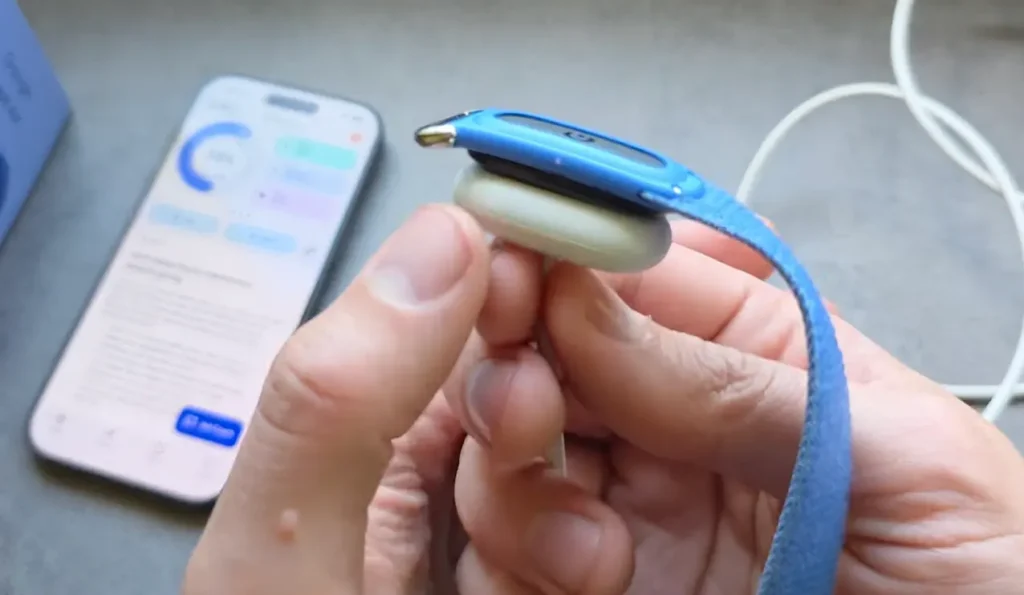
Then you have to download the Google Health app, connect the Fitbit air by clicking on devices, select the Fitbit air, and it will find the device.
How to fix Fitbit air connection issues
Even after putting it on the charger, many of you are still facing issues while connecting Fitbit air. So to solve that, I am sharing four methods to fix it, and I have personally tried all of them and they worked for me.
Fix 1: Check Bluetooth
Many people actually forget to check the basic things first, so either it is not getting connected or it simply fails because your device’s Bluetooth is not enabled. You have to check this before anything else, and obviously your device should have mobile data, then only it will show up in the Google Health app.
Fix 2: Reset it if it was Paired Before
If the device was previously paired with another smartphone, then you actually have to reset the Fitbit air first, because it might be connected to the previous device by default.
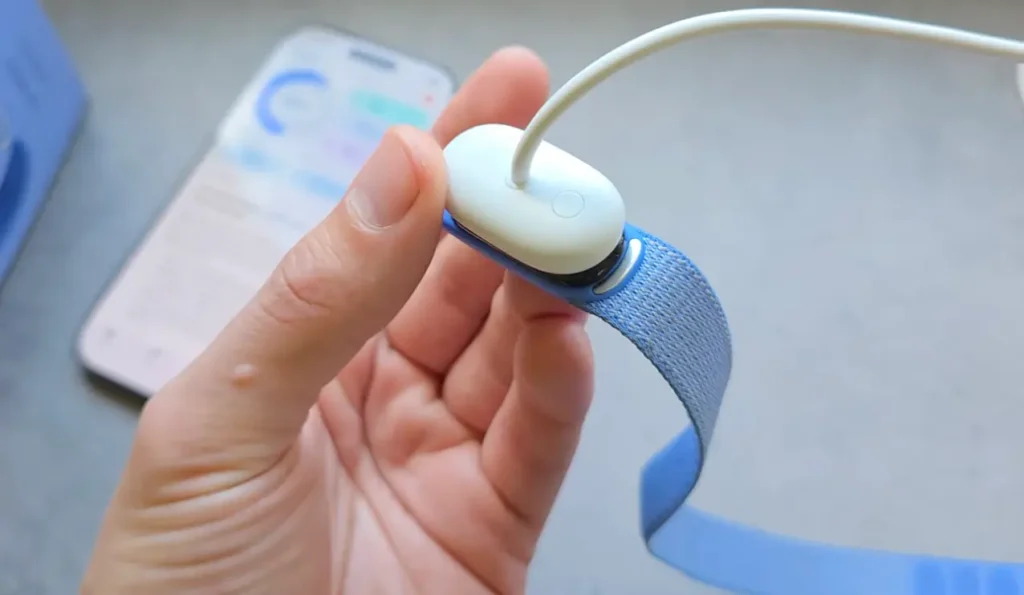
So to reset it, there are two ways:
- The first one is if you have access to the app, you can click on the Fitbit settings and then click disconnect device, and it will get reset automatically.
- The second way is if you don’t have the previous device with you, then you have to put it on the charger. On the charger you will see one tiny button, and this is the reset button.
You have to press and hold that button for 15 to 20 seconds, and once it starts vibrating, the band will essentially restart and the pairing mode will get enabled.
Read this Also: Does Fitbit Air Track Sleep?
Fix 3: Forget it from Bluetooth Settings
If this band has already been previously connected to your phone and you are trying to connect it again, especially on iPhones, then this actually does not work. So first you have to disconnect it from Bluetooth.
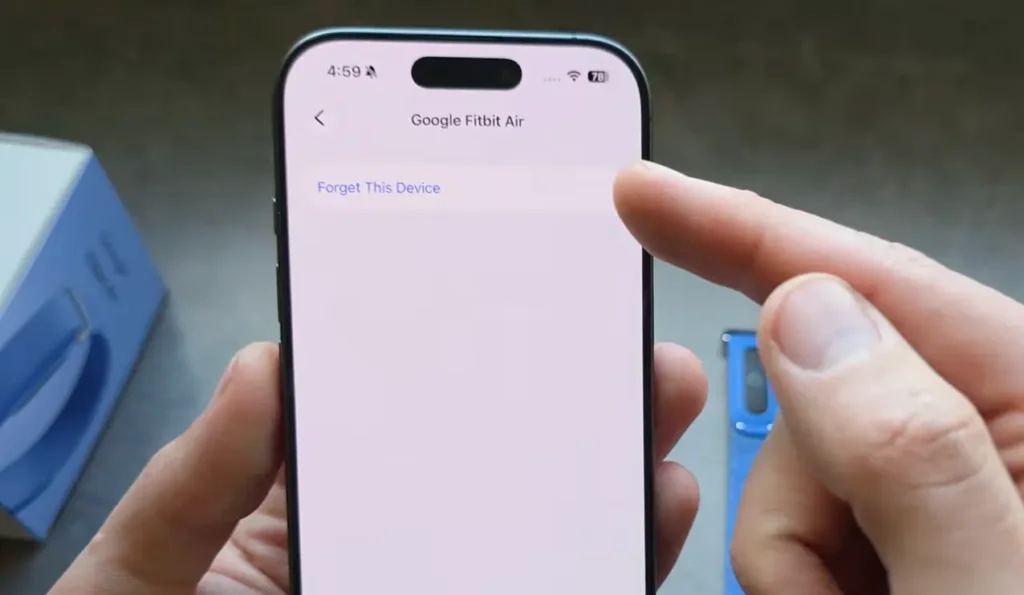
For that, you have to go to Bluetooth settings and then you will see Google Fitbit and you have to forget the device. Otherwise you can also do it from the app, but I had to do this because it was already half paired, so you cannot pair it again.
Fix 4: Try Someone Else’s Phone
After trying all three fixes, if it still cannot get connected to your phone, then I would suggest you try someone else’s phone, because the issue might be coming from your phone only.
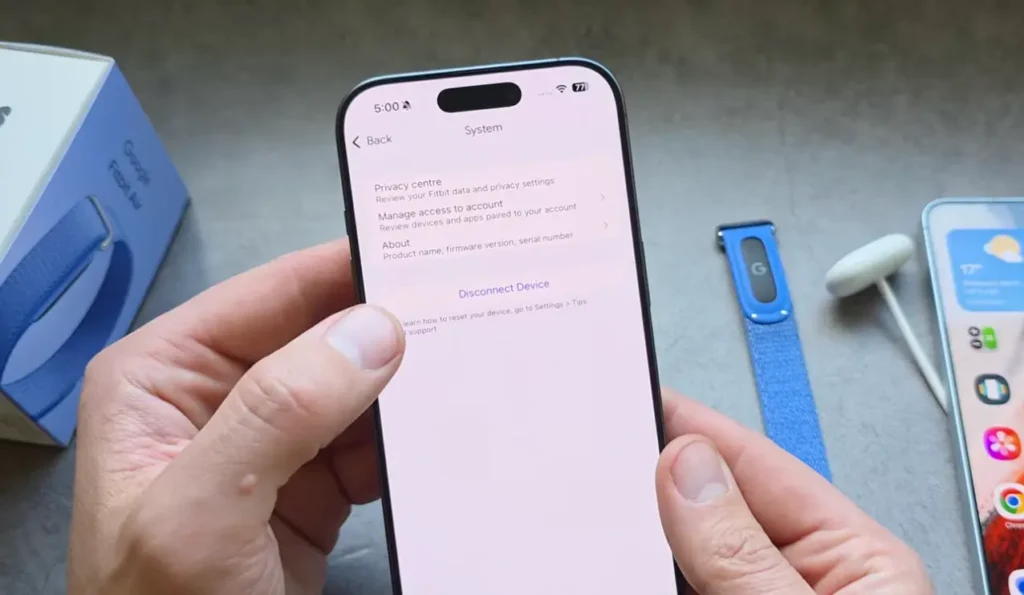
If you are able to successfully connect through the app, then simply go to Fitbit settings and disconnect from the device, which will also reset and clear all the settings. Maybe this would work for your phone afterwards.
Conclusion
Overall, the connection process is very simple, at least for my Fitbit air. The Google Health app works the best. Sometimes it cannot connect because of the Bluetooth settings, but after three or four tries, it does get connected.
But trust me, Fitbit air is reliable, at least when it comes to connecting with your device. Even if you keep changing your devices, it will still work, in my opinion.